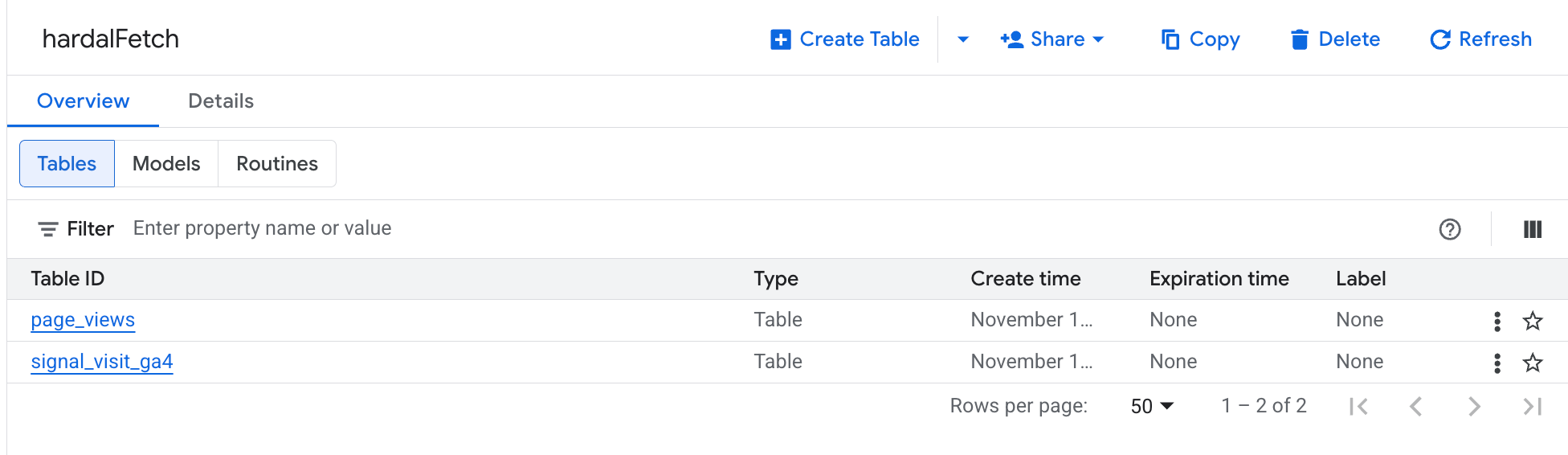
If you use Hardal to collect first-party data (1PD), you can bring that data into Google BigQuery and analyze it alongside your other marketing and product datasets.
⚠️ Disclaimer: Make sure your regulations allow you to store and process first-party data in BigQuery. See GDPR and the Google Cloud Privacy Policy.
How it works
Hardal stores your prepared datasets in Hardal DB — a SQL database you can connect to with standard MySQL credentials. BigQuery reads from that database; you do not need custom scripts or Cloud Functions.
The flow is simple:
- Build a dataset in Hardal Data Hub
- Copy the MySQL connection details from the Hardal panel
- Connect BigQuery to Hardal DB and load or query your tables
For real-time server-side event streaming (without Data Hub), see Server-Side Streaming to BigQuery. This guide is for dataset / report data already available in Hardal DB.
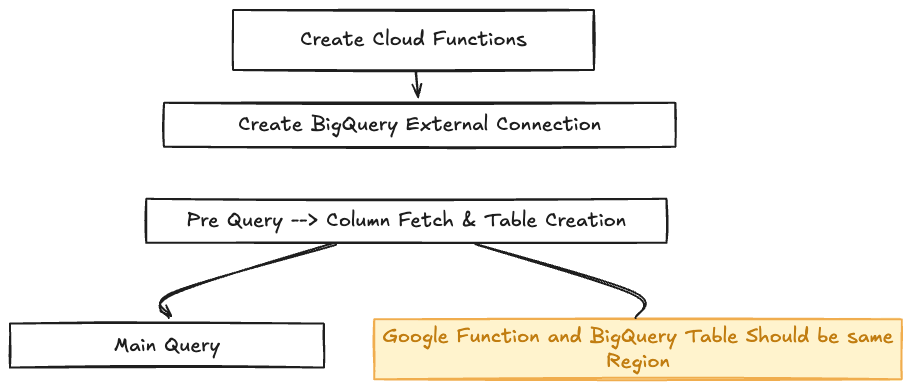
Step 1: Prepare your dataset in Hardal
- Open your Hardal project at app.usehardal.com/projects and select your signal.
- Go to Analytics → Data Hub and create a new dataset (or open an existing one). Learn more in the Data Hub glossary.
- When the dataset is ready, open its details and click Connect.
- Save the MySQL credentials shown in the dialog:
- Host
- Port
- Database
- Username
- Password
These credentials point to the SQL tables that back your Hardal dataset. The same connection works for Looker Studio, Power BI, Tableau, and BigQuery — see our Looker Studio guide for the same MySQL connection flow in another BI tool.
Step 2: Connect BigQuery to Hardal DB
In the Google Cloud Console, open BigQuery for your GCP project.
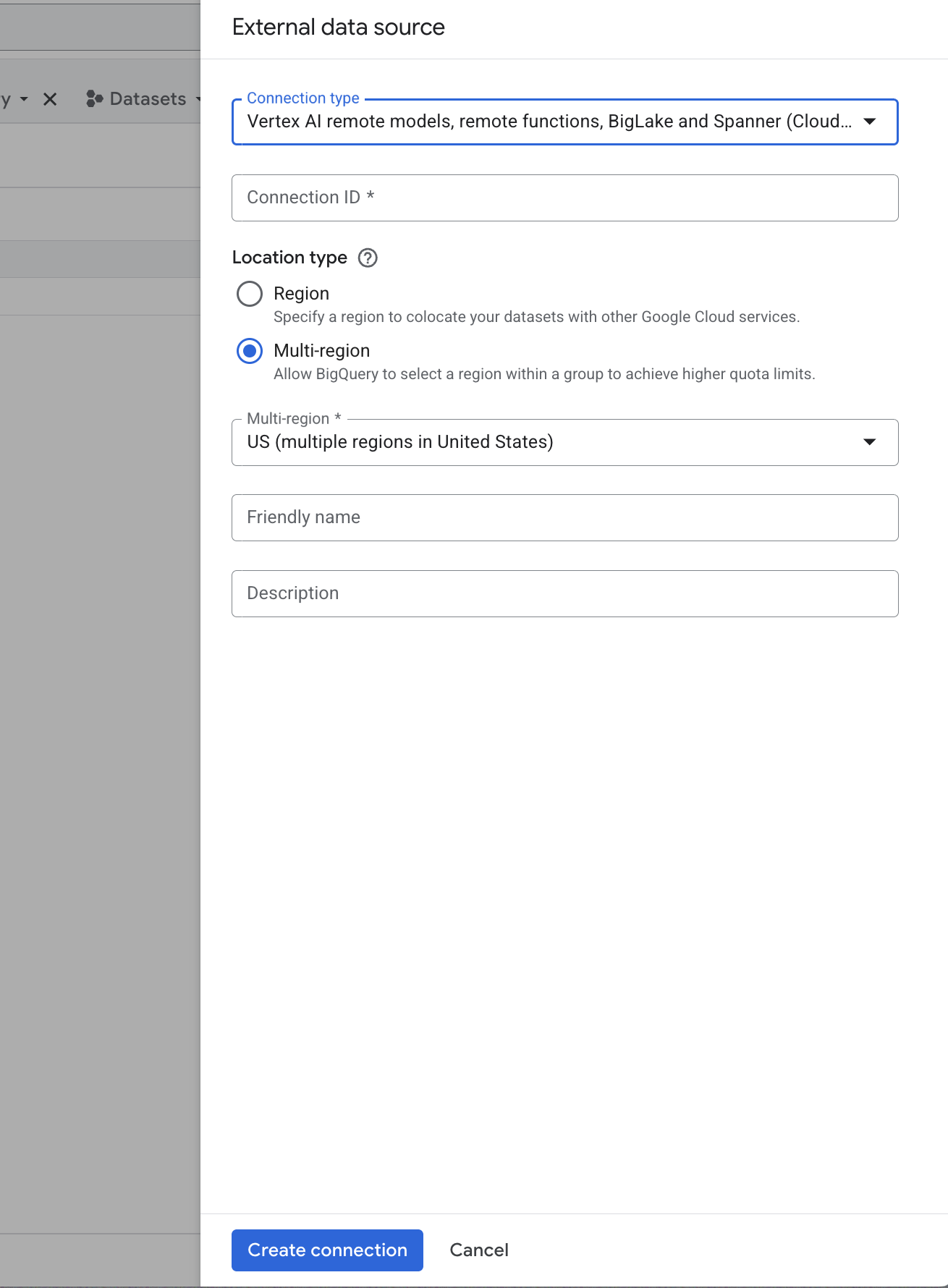
- Go to Connections (or Add data, depending on your console layout).
- Create a connection to an external MySQL data source.
- Enter the MySQL details from Hardal (host, port, database, user, password).
- Choose a region that matches where you plan to store BigQuery datasets and tables.
If your organization restricts inbound database access, allowlist the IP ranges Google Cloud uses for BigQuery connections, or ask Hardal support to enable access for your GCP project.
Step 3: Bring Hardal tables into BigQuery
After the connection is validated:
- Select the Hardal database and the tables you need (they correspond to the datasets and reports you built in Data Hub).
- Either query the data through the connection for exploration, or create native BigQuery tables so queries run faster and you can join with GA4 exports, ads data, CRM tables, and other sources in the same project.
- For recurring updates, set up a scheduled transfer or refresh so BigQuery stays in sync with Hardal DB according to how often your dataset is updated in Hardal.
Tip: Keep your MySQL connection and BigQuery datasets in the same region to avoid cross-region latency and extra cost.
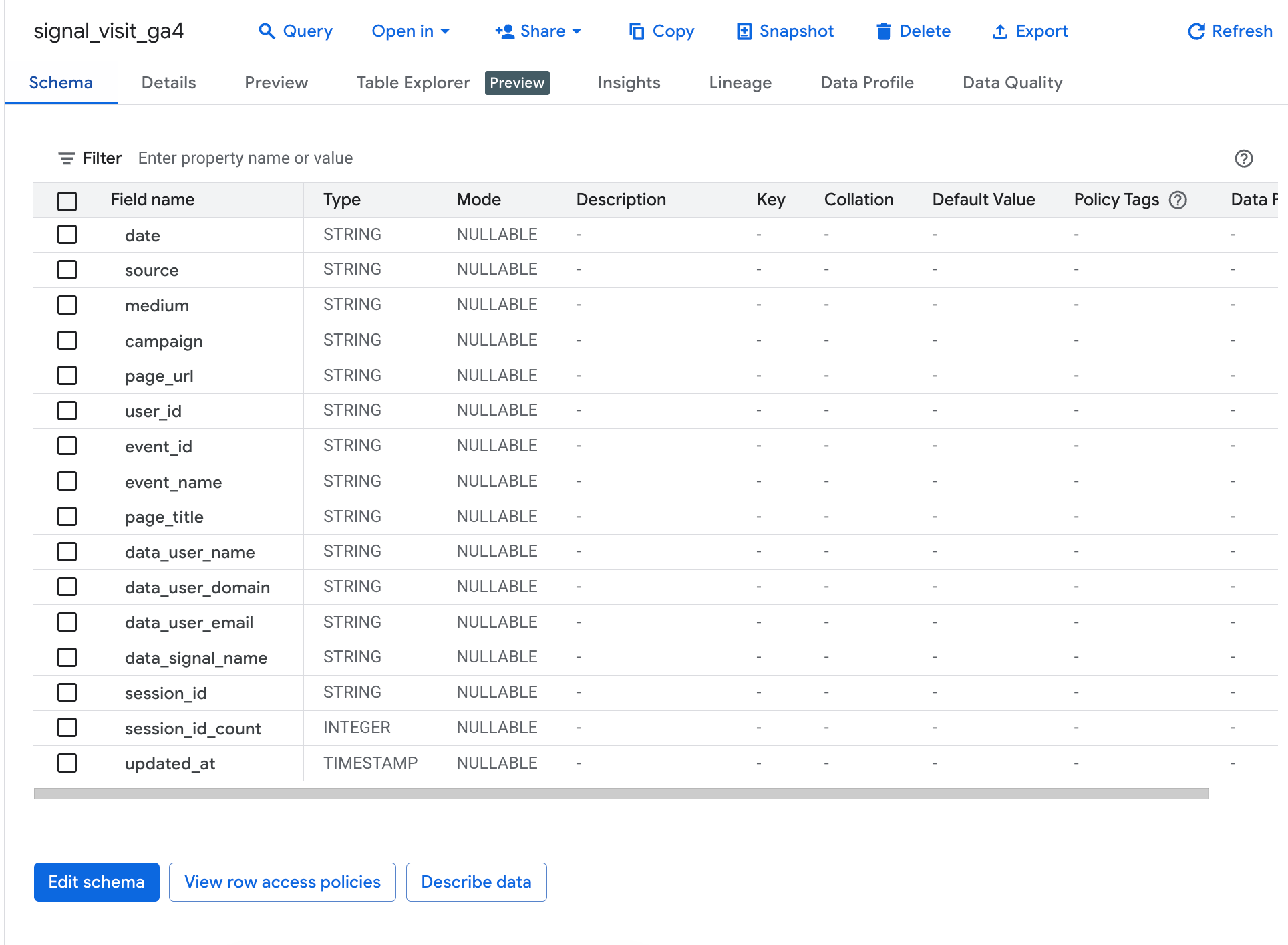
What you get in BigQuery
Once the link is in place, your Hardal first-party fields — sessions, campaigns, events, custom properties, and attribution columns from Data Hub — are available as structured tables in BigQuery. You can:
- Build dashboards in Looker or Looker Studio on top of BigQuery
- Join Hardal data with GA4 BigQuery exports or ad platform data
- Run SQL for cohort, funnel, and LTV analysis at scale
🎊 Congratulations! Your Hardal first-party data is ready to use in BigQuery.